
Make a list of NPR and college radio stations and review each station's schedule
This is one of the most time-consuming parts of the process, but it can also be a lot of fun if you stumble on a particularly good station, like WOBC. They have a great lineup with diverse programming, clicking on a show opens a page with a show description (some smaller stations don't describe their shows, so you have to take a guess based on the show title) and the schedule displays well on smaller screens. I pull the NPR and college radio station lists for a state from wikipedia, open each station in its own tab, then close the tab once I've reviewed the schedule.
Pull the stream url for the station
Sources online say you can look through the page source to find links to the stream, but I've found the easiest way is to open the browser's developer tools, click the network tab, then click the play button on the radio station's website. There will be a bunch of resources that show up in the side pane, but at least in Chrome, the stream will show up as a green square with a play icon inside it. Sometimes, clicking the Play/Listen button on the website will open a new page, so it might take some trial and error to get the stream to play on the tab where the developer tools are open. I've included a list of the streams I've saved here. I also came across this site while checking if my site showed up on Google. It has a lot more streams listed.
Probe the url to check the stream's encoding
I run the url through ffprobe (included with ffmpeg) on the command line to find the codec being used. A lot of the streams are using .aac as the encoding, which should be compatible with .mp4, but I get playback errors when I try to save those streams as an .mp4 or .m4a. It mostly works for me to save them as .aac, but my player doesn't accurately display the total length of the file. YMMV.
Here's an example. Entering the following command will probe the stream for WUCX:
ffprobe https://wucx.streamguys1.com/live
There will be several lines of output, but towards the bottom, there will be a summary section of the stream, like below:
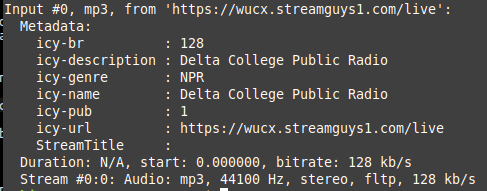
Ffmpeg provides options to change the encoding of the output file, but if you are doing a straight copy of the stream, then the output filename should match the encoding of the stream (mp3 in this case).
Schedule the stream recording
Windows Task Scheduler TutorialSince I'm using a Linux system, I schedule all the recordings through cron. A downside to using cron is that the system must be awake for the job to process. Macs, since they are based on Unix, also have cron built in, but I've read the recommended route is to use launchd. However, the stated benefit of launchd is that it catches up on missed tasks after being woken up, but doesn't work with recording live radio streams. Windows has Windows Task Manager as their equivalent to cron. By default, it also doesn't run tasks while the system is asleep, but it may be possible to enable wake timers to bring the computer back up to run the task.
Here is an example using cron. On a Linux system, you can access the schedule file by typing crontab -e in your terminal. If the system asks which editor to use, I would recommend nano. Please note that the line might wrap here in the browser, but it should be entered as a single line in cron.
0 14 * * MON /usr/bin/ffmpeg -i 'https://wucx.streamguys1.com/live' -t 01:00:00 -c copy ~/RadioShows/MusicYouMayHaveMissed-$(date +\%Y-\%m-\%d).mp3 > ~/RadioShows/Logs/MusicYouMayHaveMissed.log 2>&1
The line has three main sections. The first section 0 14 * * MON contains the schedule. To summarize, I am asking cron to run the task every Monday at 2:00 pm. The first field is minutes from 0-59. This will usually be 0 or 30 since most shows start on the hour or half-hour. It's important to note that this is based on the system time. If the station is in a different time zone, you will need to convert it to your local time. The next section is the time in 24-hour format, from 0-23. The next sections are the day of the month, from 1-31 and the month, either 1-12 or JAN-DEC. Since most radio shows follow a weekly schedule, we can ignore these fields by using an asterisk to include all. The final part is the day of the week, using either the first three letters of the day or 0-7, where both 0 and 7 represent Sunday. You can also use a comma separately list, such as MON,WED,FRI to record a show occurring at the same time Monday, Wednesday, and Friday, or MON-FRI to record a show occurring the same time each weekday.
The next section is /usr/bin/ffmpeg -i 'https://wucx.streamguys1.com/live' -t 01:00:00 -c copy ~/RadioShows/MusicYouMayHaveMissed-$(date +\%Y-\%m-\%d).mp3 and contains the command I want to run. I am calling ffmpeg using an absolute reference. Cron might not call the program correctly if I just use the program name. The flag -i indicates the input address. I've found that it's best to use apostrophes instead of quotation marks in the input address. This prevents some issues where special characters in the web address are interpreted as a special command instead of being part of the web address. Also, if there are percentage signs in the web address, you need to add a backslash (\) before each one. The next part of the section is -t 01:00:00 and represents how much of the stream to record in HH:MM:SS format. The -c flag is used to specify the encoder. We are using "copy" to indicate that we don't want to change the encoding of the stream to reduce processing load and avoid quality loss. I've read that audio transcoding doesn't require a lot of processing power, but I haven't tested converting file formats. ~/RadioShows/MusicYouMayHaveMissed-$(date +\%Y-\%m-\%d).mp3 is the output file. For those new to Linux, the "~" character references the user's home folder as a starting point. I chose to put my recordings in a folder called RadioShows, but you should adjust that part based on your personal file structure. The next part references the show title and -$(date +\%Y-\%m-\%d) adds "-YYYY-MM-DD" to the end of the file. This prevents cron from overwriting a file if I don't get around to listening to it before the next scheduled recording. Finally, make sure you use the correct file extension based on the encoding of the input stream.
The final section uses the ">" character to send stdout and stderr (which are usually sent to the screen) to a log file. It's helpful if you run into errors, but it's optional.
I found it has been helpful to add a commented line (start the line with a #) with a template entry, such as
0 14 * * MON /usr/bin/ffmpeg -i '' -t 01:00:00 -c copy ~/RadioShows/ShowTitle-$(date +\%Y-\%m-\%d).mp3 > ~/RadioShows/Logs/ShowTitle.log 2>&1
Copy the line to a new line in the crontab file. If your terminal allows it, you can highlight the text with your mouse and click copy, move the cursor to the new line and click paste. Otherwise, you need to use CTRL+K to cut the template line, use CTRL+U to replace the line, then move the cursor to a new line and use CTRL+U to duplicate the line (nano doesn't seem to have a copy function built-in). Then, you just have to adjust the day and time, paste in the URL, adjust the duration, and update the song title and file extension. I also find that it's helpful to include a commented line above the entry indicating the show and station.
(Optional)Transfer the file
This step can be skipped if you are listening on the system that recorded the show, but it's more convenient for me to listen on my phone. I use RaspController to transfer the files and delete any old ones, but there are most likely equivalent apps depending on what system you are using. There is also the option of having a media server on the recording device.
Enjoy!
This part should need no explanation, but I wanted to add a tip that I stumbled upon. I found that using an audiobook player instead of a standard media player has a few advantages:
- If you place the radio shows in a dedicated folder, the audiobook player treats each show as a separate chapter of the same book. My default media player would require me to search for each media file separately.
- The audiobook player keeps track of the progress in each chapter. This is handy when I want to take a break from a show. My media player would most likely drop the progress in the episode.
- If I like a song and don't have time to look it up, I can drop a bookmark and move on.
- The buttons on my car's steering wheel and on my watch default to seeking, instead of skipping like would be thr default with a music app.
I've been using Simple Audiobook Player in Android. It doesn't show any ads and the interface is, well, simple. Once I'm finished, I delete the file from my phone using my file utility. I use FX on Android.
Support
I'm probably preaching to the choir with this point, but if you find a station or artist that you really like, you could consider supporting them. For bands, Bandcamp is a great way to buy their music. Bands tend to get a higher cut of the proceeds compared to other websites. Also, Bandcamp Friday is a day where Bandcamp waives their revenue share, meaning more of your money makes it to the bands.